

Create customers and edit their information
Follow phone-check results to a new record, existing customer or PetConnect connection.
Platform · Last verified:
Search in Customers → Records first. New customer starts with a phone check; enter the number with its country code.
Phone-check result
| Result | Next action |
|---|---|
| Available number | Continue to the new-customer form |
| Existing customer | Open the offered customer detail; do not duplicate the person |
| PetConnect account | Use the offered connection request; do not create a second pending/active request |
| Previously blocked connection | Inspect the existing detail or reconnection entry; access is not restored before acceptance |
Check again after changing the phone or country code. If the displayed person/connection is not the intended owner, stop and verify the number.
Form and save
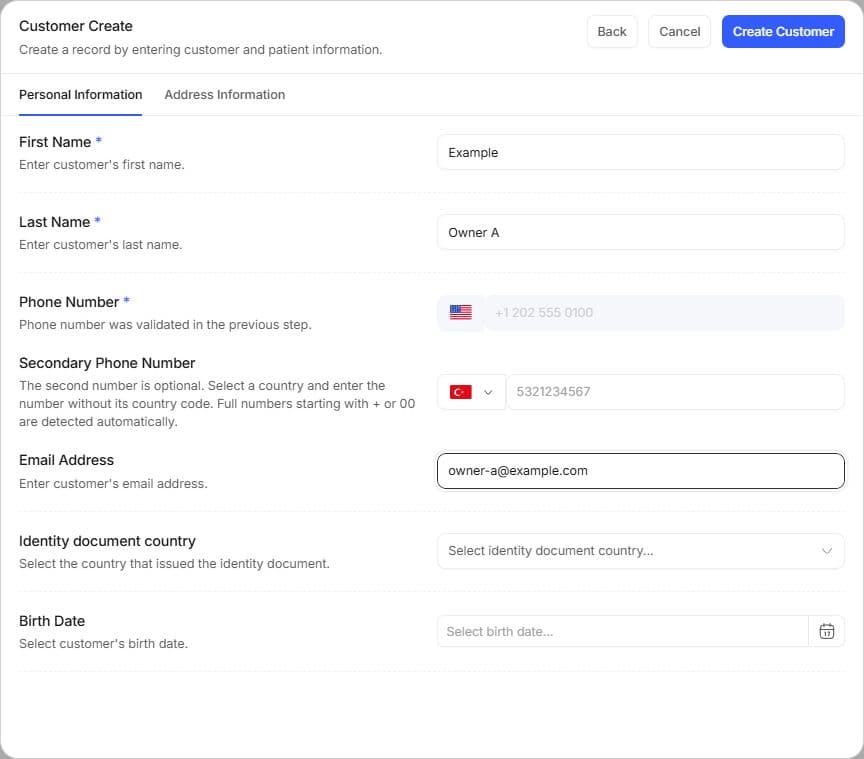
The name, email and phone shown here are fictional. The phone was checked in the previous step; do not fill unknown identity or birth-date fields with sample values.
- Enter first/last name and real contact information. Complete email, address, city/region, postal code, birth date and quick notes from known information.
- Check residence country separately from the identity document's country. Choose the correct document type/number; never fill an unknown identity with a sample number.
- If using an old-system protocol number, enter the correct value. Do not bypass a conflict with another person's number.
- Save and open the customer detail; check phone, patients and connection state. Use the patient path separately.
Editing and notes
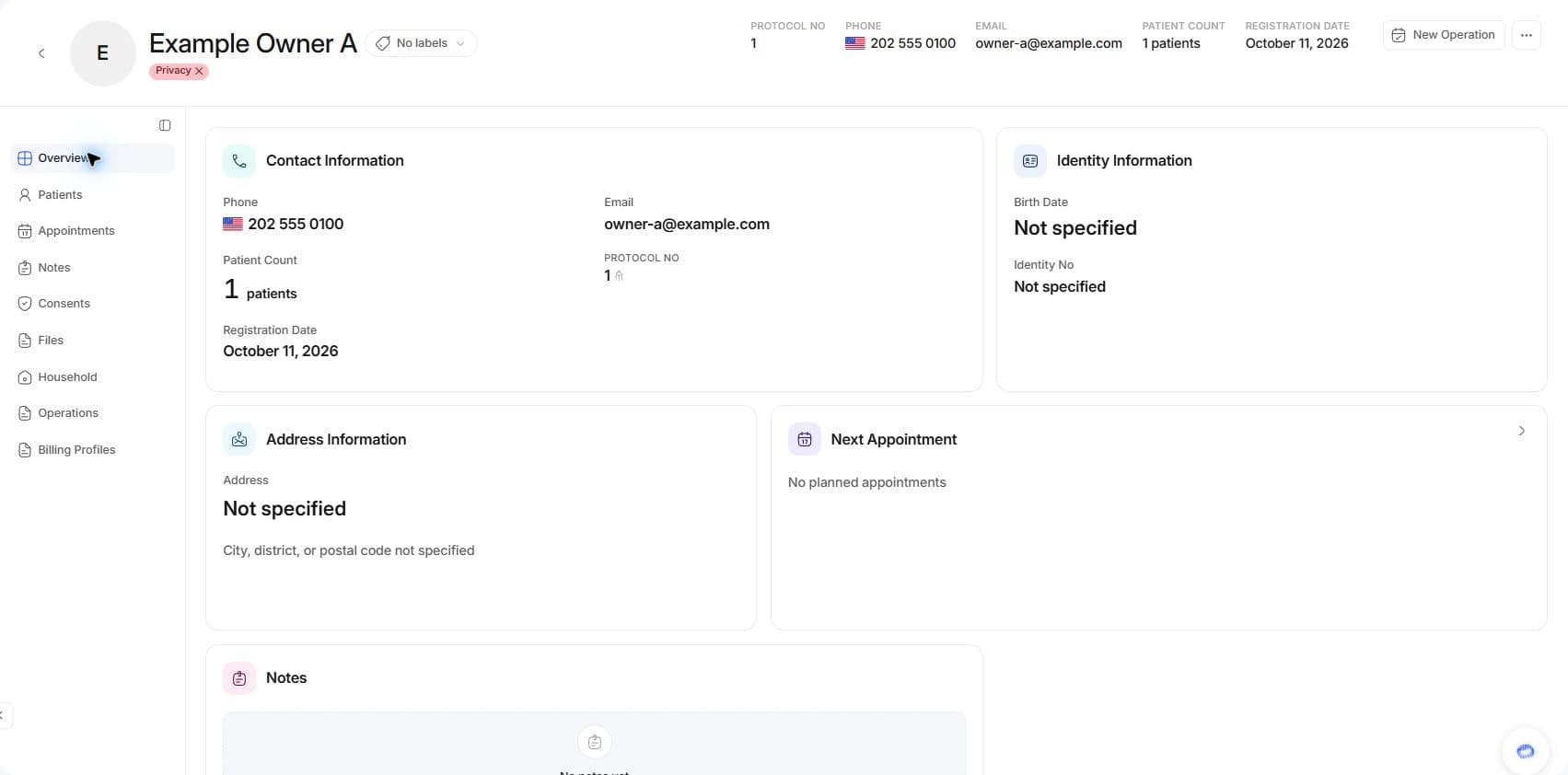
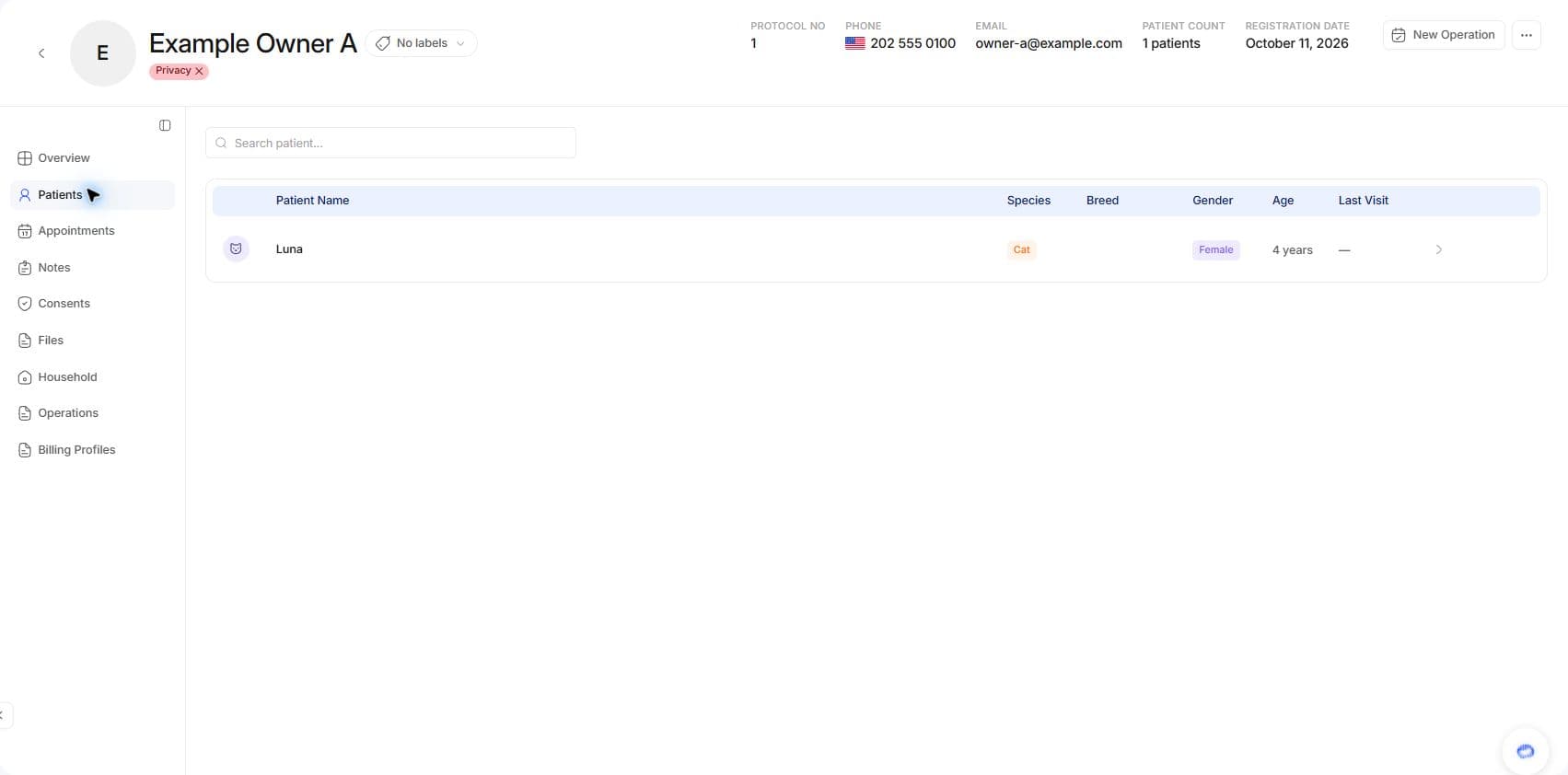
Patient creation may open after saving the customer; the customer already exists at that point. Cancelling the patient step does not require another customer record. Check the existing customer and linked patients first.
Open Edit Customer from detail. PetConnect-linked profile fields are owner-managed and may be read-only in the clinic form. Quick notes, protocol number and clinic connection are separate information. Use the detail's own notes actions; a note creates neither a sale nor an examination.
Example: if Example Owner A and their patient Luna are already listed, do not create another owner record. Open the existing customer returned by the phone check and continue to Luna. After a save error retain changes and inspect current data; for connection errors follow connections.