

Sign in with phone, SMS and social accounts
Use Platform phone sign-in, VetConnect approval and linked social accounts.
Platform · Last verified:
Start on Platform's sign-in screen. Check the country code and national phone number together; never use someone else's code.
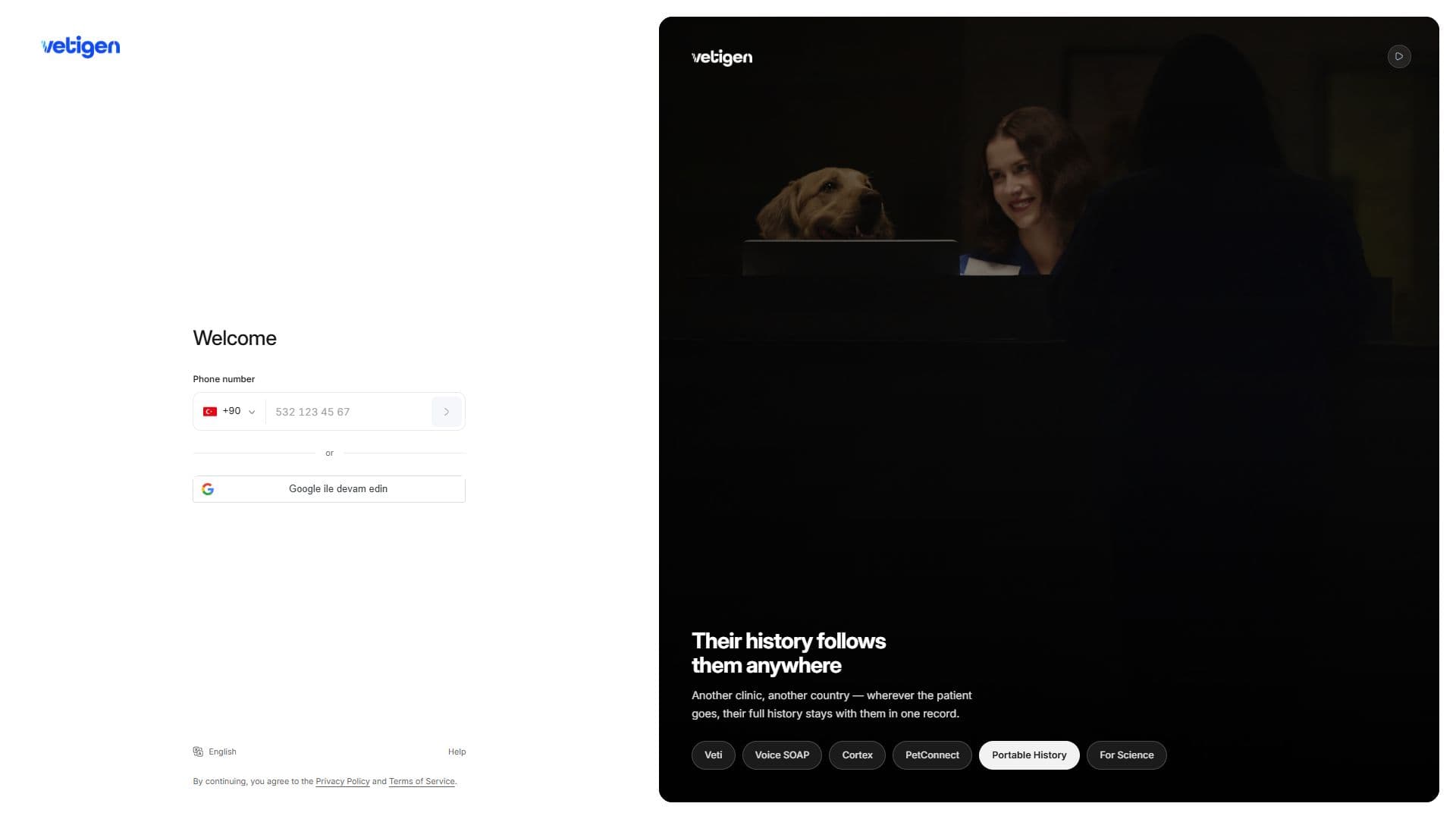
Check the country code beside the phone field. Use the language selector at the lower left to change the interface language.
Phone sign-in
- Enter your phone and continue. Verify the displayed destination belongs to you.
- If SMS opens, enter or paste the six-digit SMS code. Verification begins when all six digits are entered.
- If VetConnect approval opens, review and approve the request on your own phone. The offered Verify with SMS action switches the same sign-in to SMS.
- Follow the resulting setup, invitation or clinic screen. Entering a code does not complete clinic setup.
Failed code or approval
After a wrong code, use Try again or Enter; do not expect the same code to resubmit automatically. When it expires, start a new sign-in from the phone step. Change number corrects a wrong phone; the previous code cannot authorize a new attempt. Complete a displayed verification challenge. If VetConnect approval does not arrive, check the mobile session/connectivity and use the offered SMS path.
Google or Apple
A linked social account signs in normally. An unlinked account proceeds to phone verification; completing it links the social identity to that account. Google/Apple is not a separate unverified clinic-account registration path.
Example: if the displayed phone's final digits are wrong, change the number rather than guessing the code. Successful sign-in opens your own account. Sign out when finished on a shared computer. Setup, join a team.